
Google Integration
If your school uses GSuite (Formerly Google Apps), you can enable single sign on and calendar integration via Gibbon. This process makes use of Google APIs, including OAuth, and allows a user to access Gibbon without a username and password, provided that their listed email address is a Google account to which they have access
1. Log in to the Google developer console. This requires that you have an account with administrative privileges on your G Suite domain.
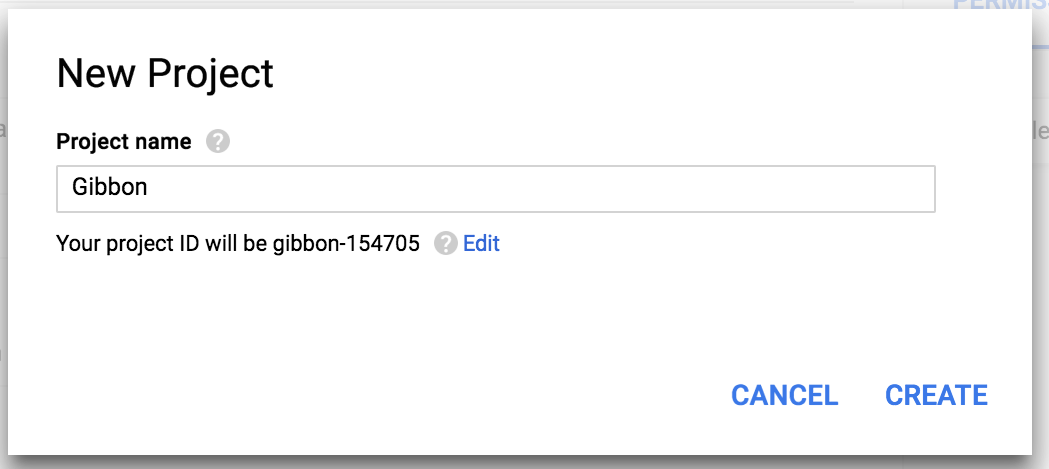
2. Once logged in you need to create a new project by clicking the Create Project button:

3. In the new project set-up dialog, give your project a name. Click the C______reate button:
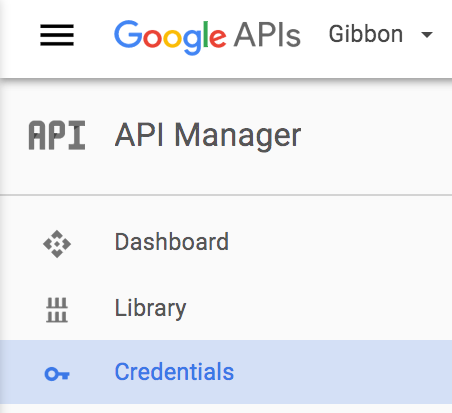
4.Click on the Credentials tab:
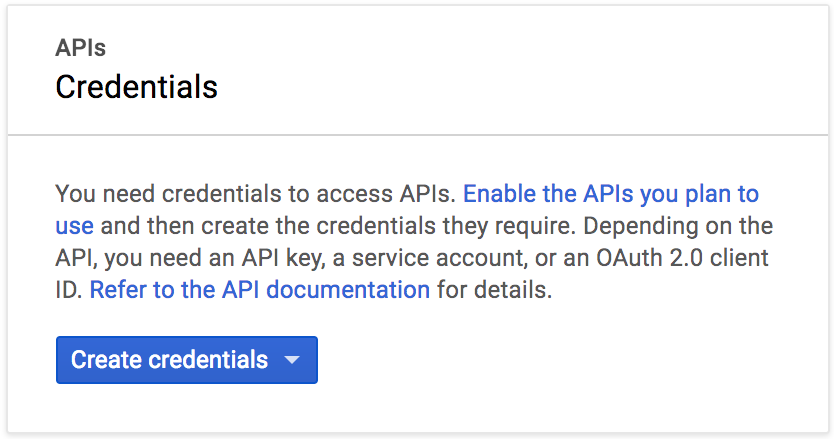
5. Then click Create credentials:
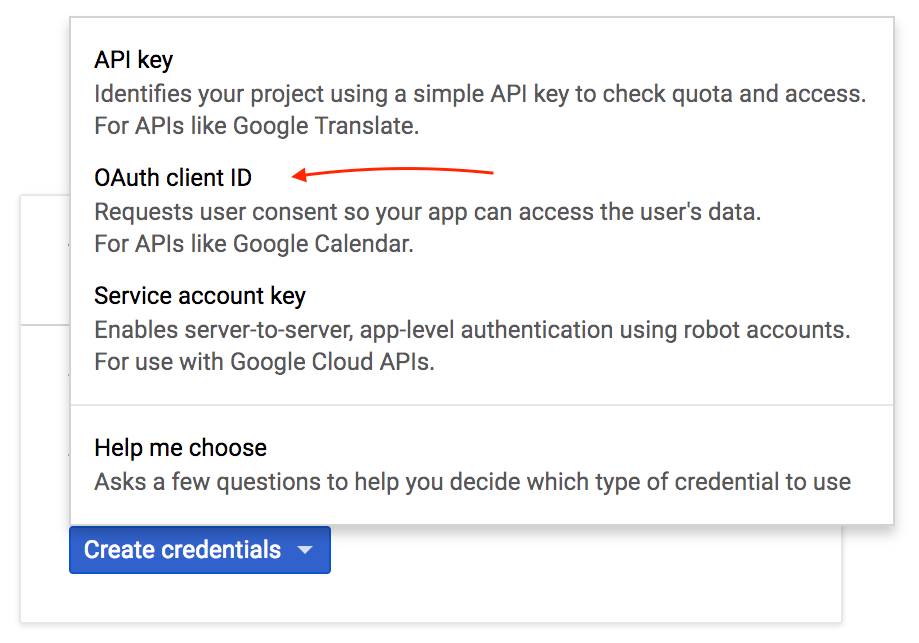
6. Click Choose OAuth2 Client ID:
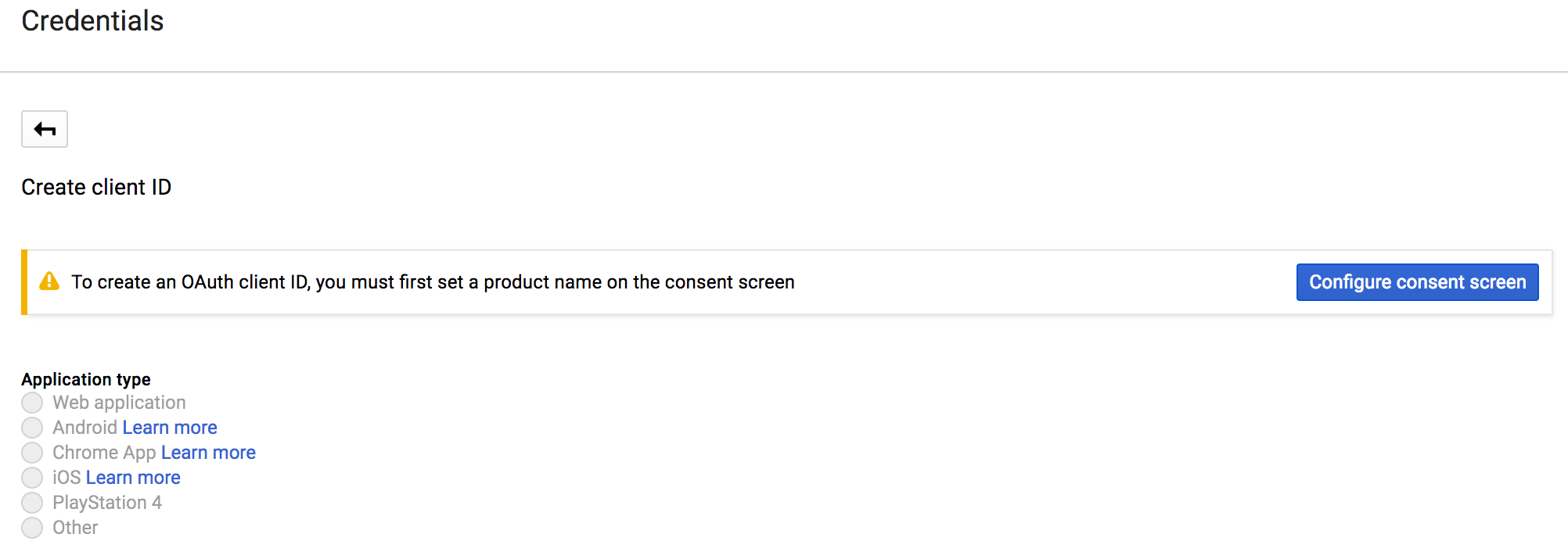
7. If you have not already configured the consent screen, at this point you will be required to do so:
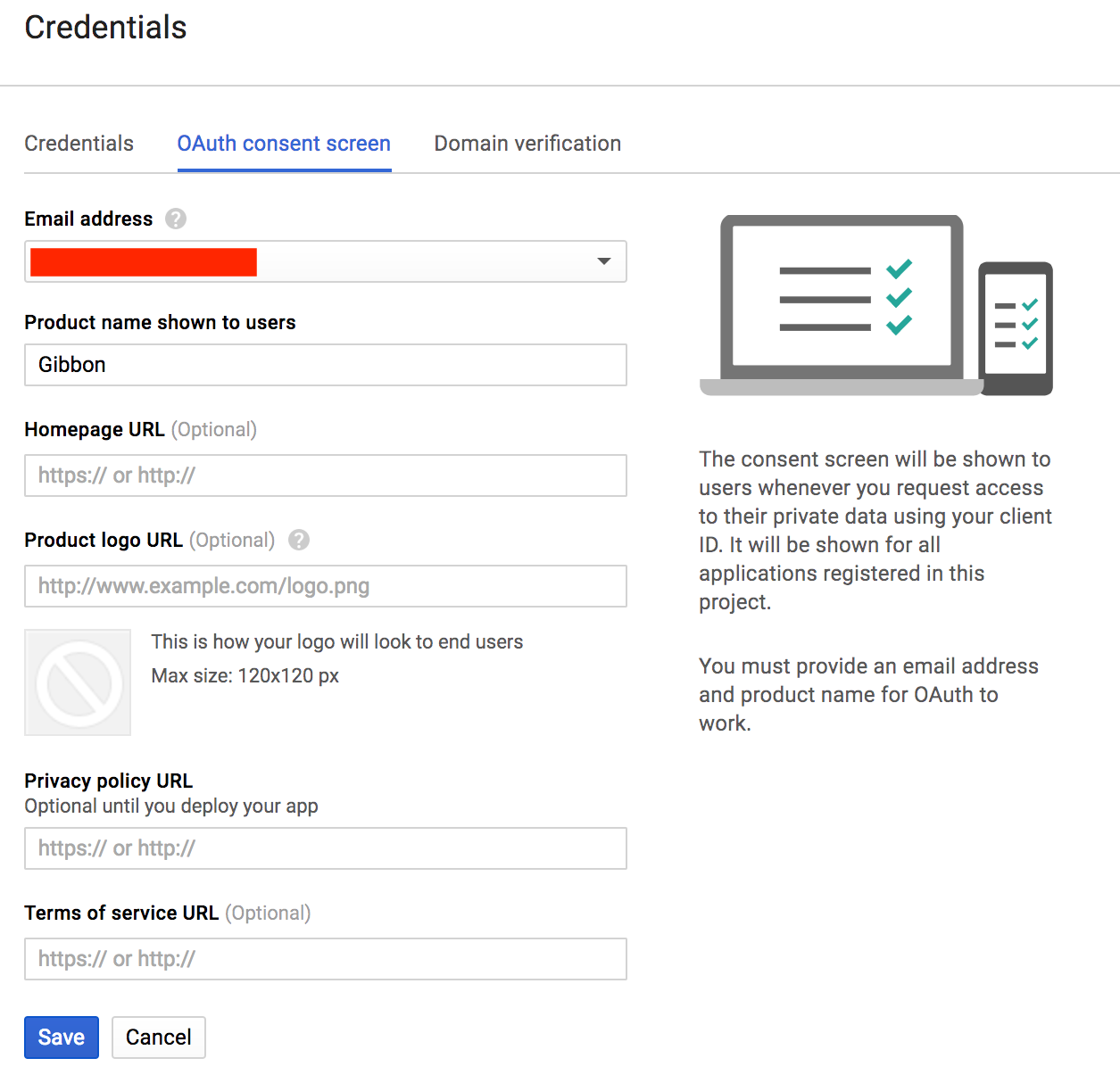
8. Fill in the details for the Product Name and click Save.
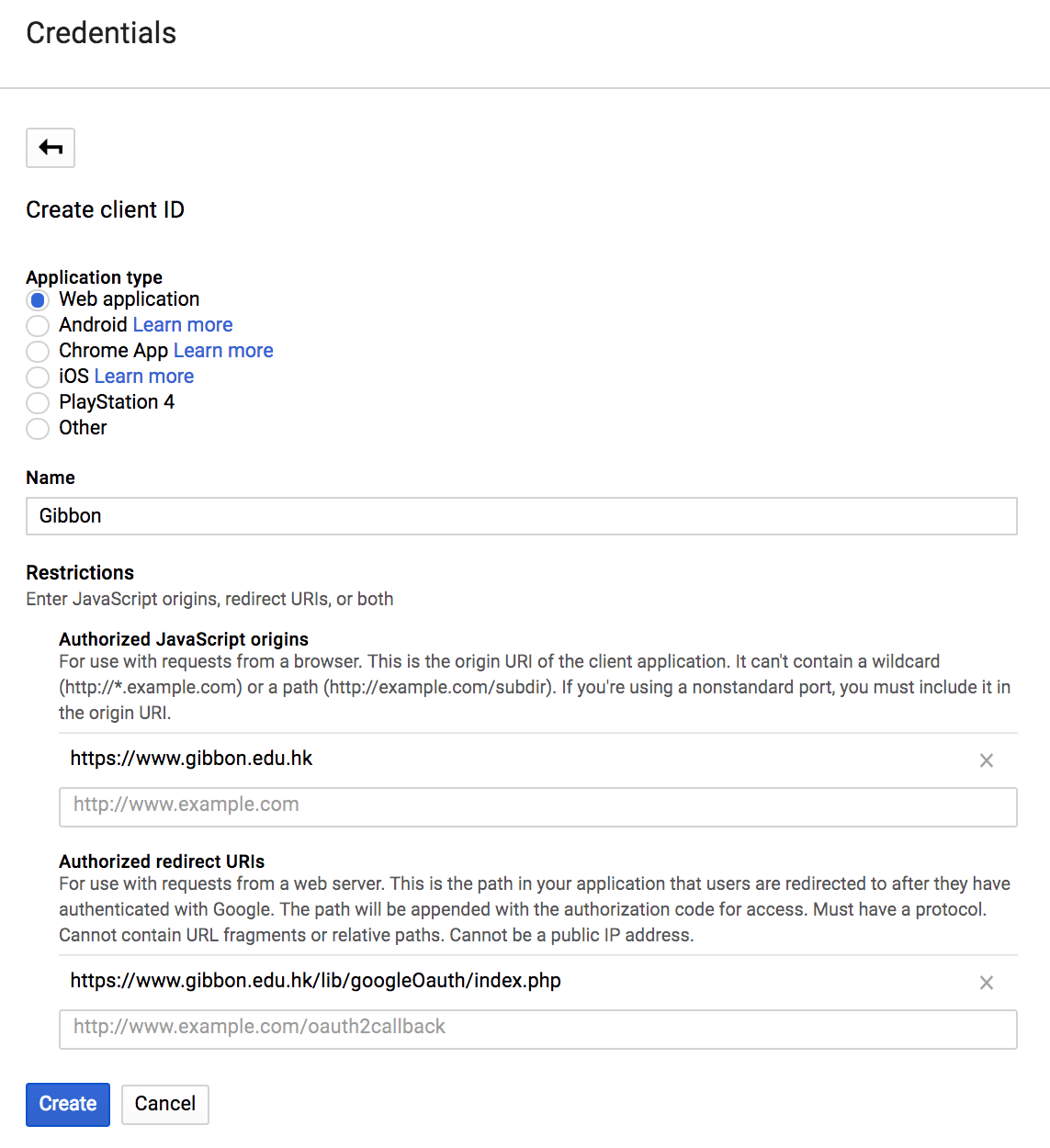
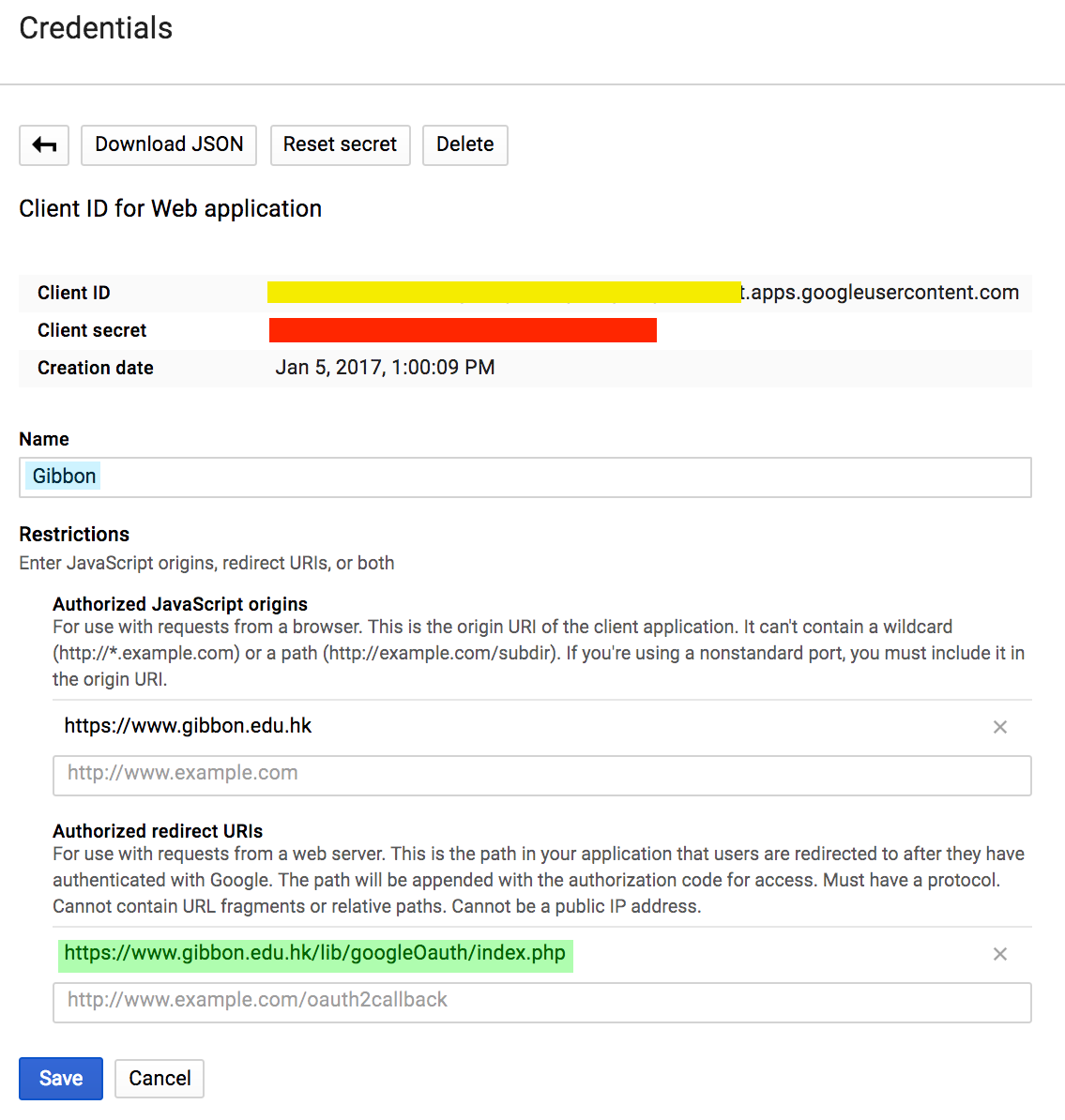
9. In the new client ID window, do the following:
- Choose Web Application.
- Set Authorised Javascript origins to the url of gibbon on your server.
- Set Authorised Redirect URI to http://www.your-gibbon-install/lib/google/index.php. The googleOAuth folder is in the in the lib folder of Gibbon v14.0.00 and above on your server.
- Click create client ID:
10. After this is complete, the client id details will be given to you: 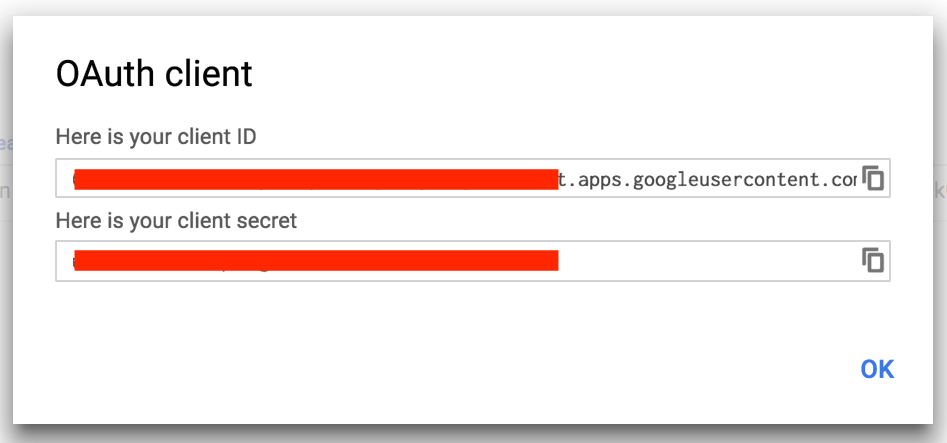 (Save the client ID and client secret for step 14.)
11. Create an API key: 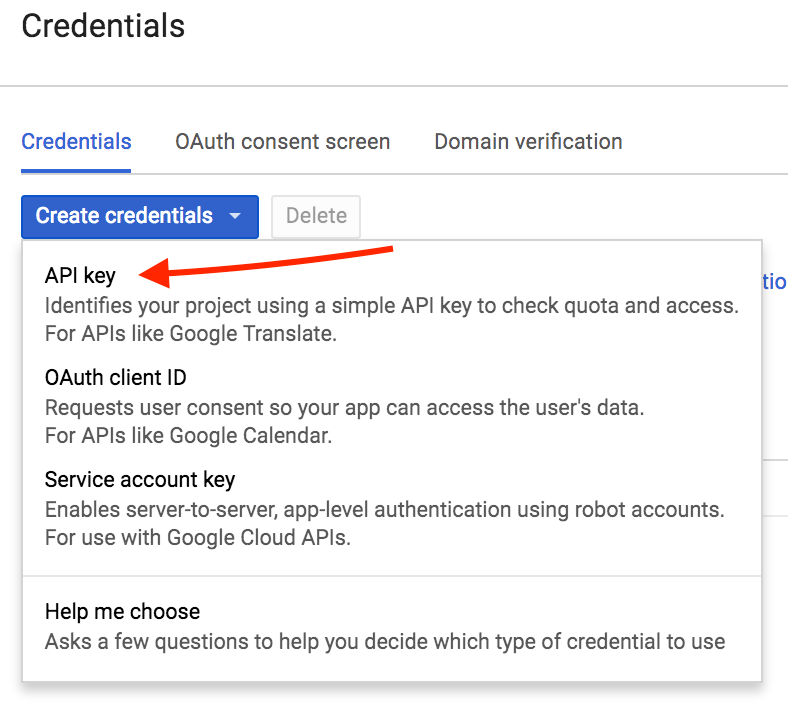
12. Save the API Key for step 14: 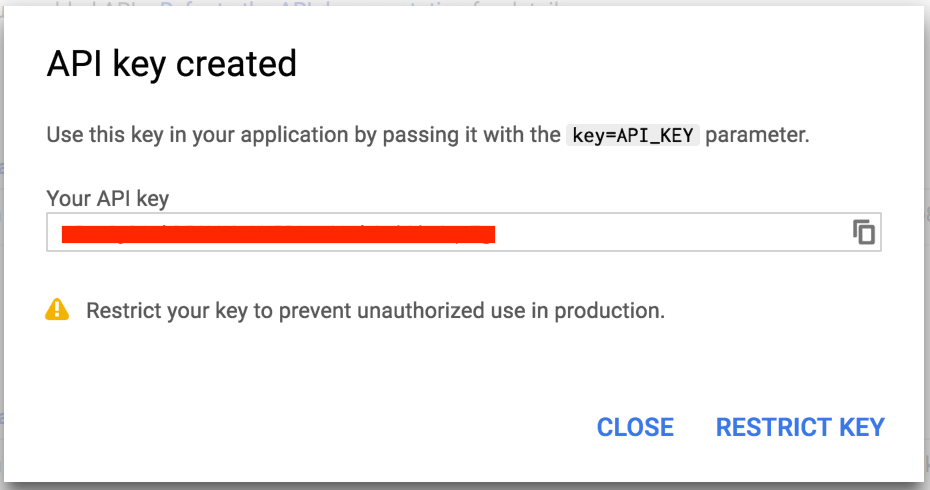
13. Leave the Key Restriction blank: 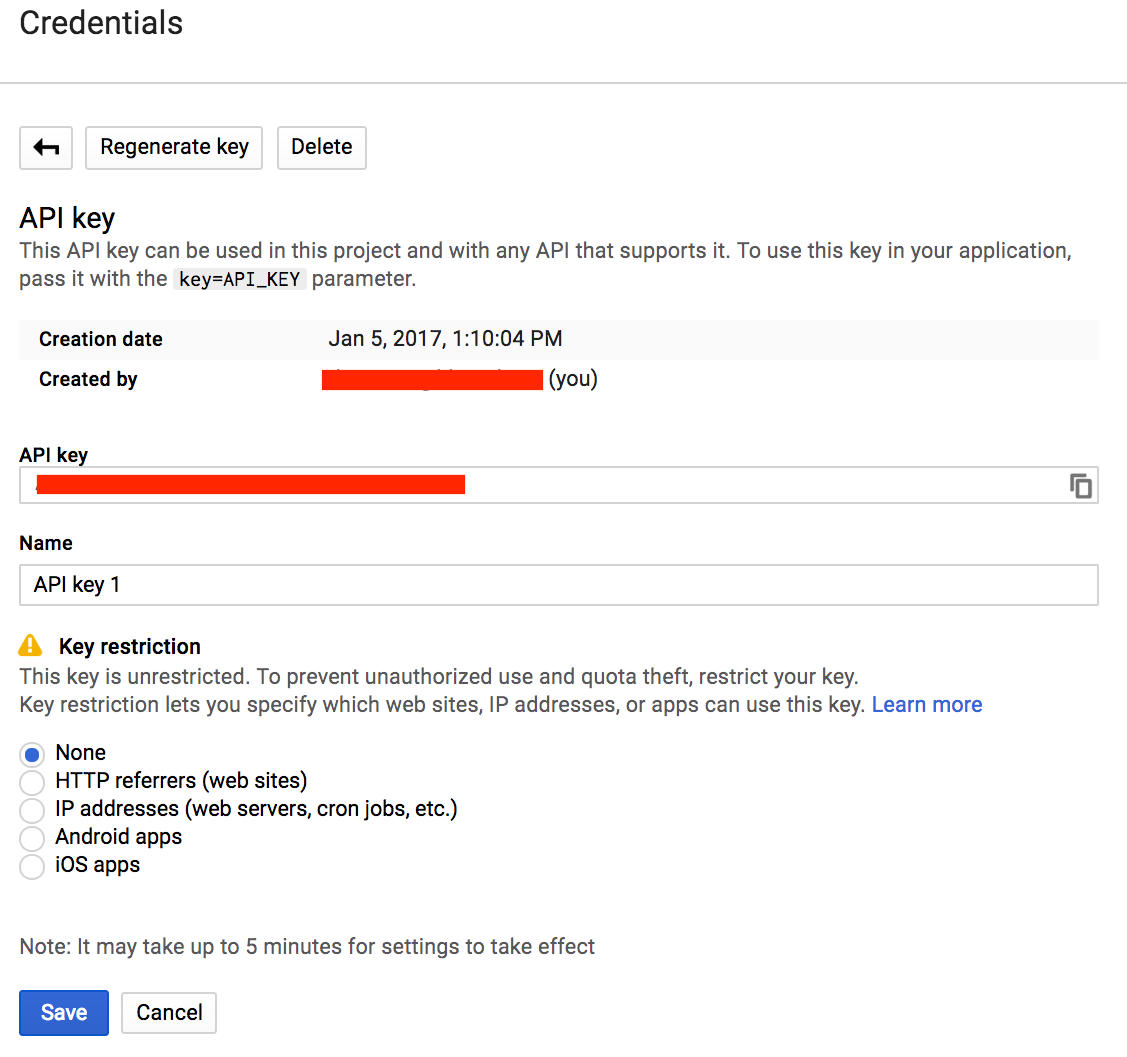
14. Everything is now set up on the Google side, so you can enter your details into Gibbon by going to Home > System Admin > Third Party Settings. The details you need to enter into are as follows.
- Google Developers Client Name
- Google Developers Redirect URI (See step 9 above)
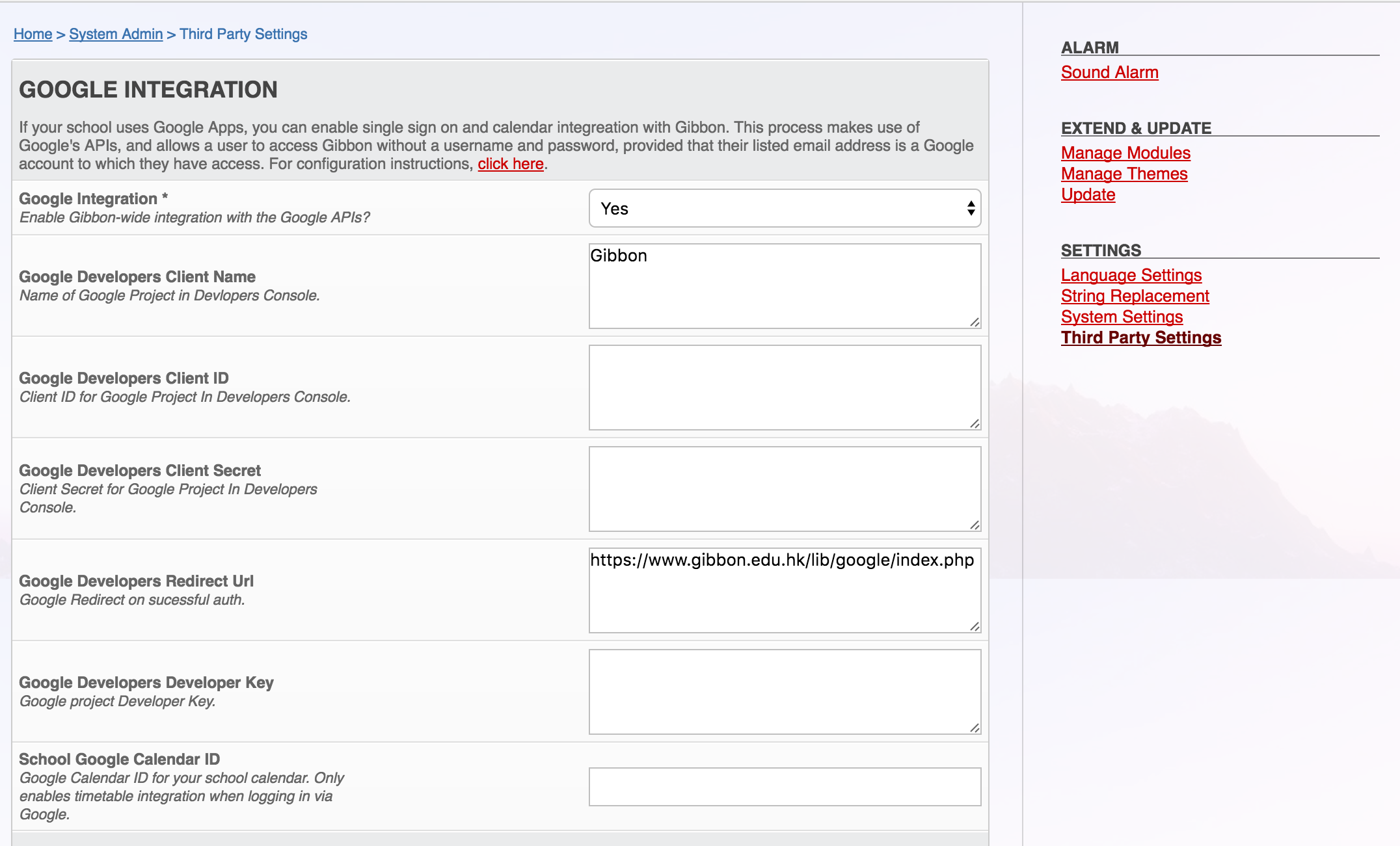 Use details from steps 7-8 or click on the Credentials tab: For the following use: Google Developers Client ID = Yellow Google Developers Client Secret = Red Google Developers Client Name = Blue Google Developers Redirect Url = Green
  API Key: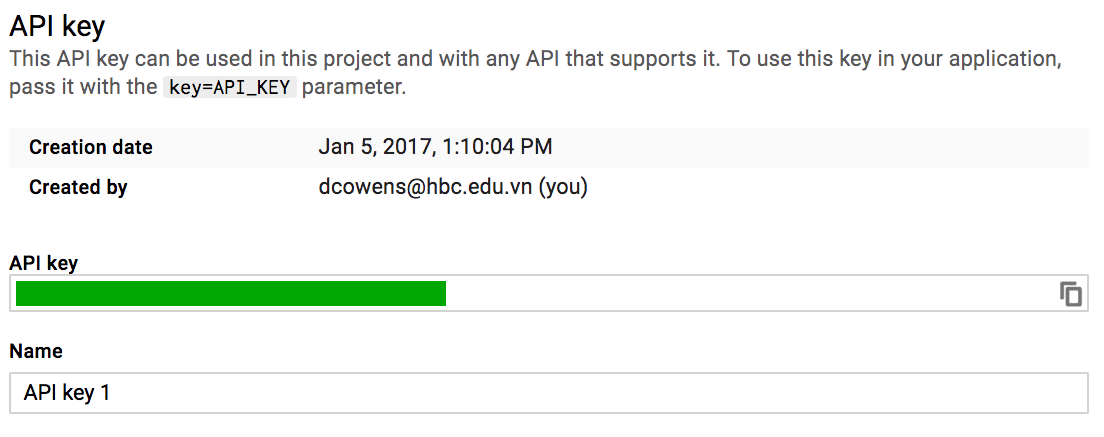
15. Gibbon requires a single Google API, the Calendar API, which can be turned on via the Google Developer Console.
16. On the Gibbon home page, you should now see a Sign In With Google button, which allows users to enter the system without their Gibbon username and password.
17. When a user logs in using Google, their personal calendar, if not yet set, will be set to their primary Google Calendar.
18. In additional, the school can specify a Google Calendar for all users to have in their timetable. To set this up, go to Home > System Admin > Third Party Settings and set the School Google Calendar IDSchool Google Calendar ID field to the ID of a shared Google Calendar.